KICB Apple Pay KICB Apple Pay

Benefits of Apple Pay

Speed

With Apple Pay, you can quickly and easily pay for purchases using your KICB card directly from your iPhone or Apple Watch.
Security

Apple Pay uses the built-in security features of your Apple device, including Face ID and Touch ID, while on Apple Watch it uses a double press of the side button, ensuring that only you can authorize payments.

Privacy

Your card number is not stored on your device or on Apple’s servers. In addition, Apple does not share your card number with merchants when you make a payment, helping keep your information private and providing an extra layer of protection against fraud.

Convenience

You can confidently leave your wallet at home. With Apple Pay, you can pay for purchases using your KICB card directly from your iPhone or Apple Watch. Simply hold your Apple Watch or iPhone near the payment terminal.

Payments Worldwide

Apple Pay is available worldwide. It can be used at millions of stores and websites around the globe.

Offline Functionality

Pay for purchases at POS terminals even when your smartphone is not connected to the internet.
How to Add a KICB Card to Apple Pay

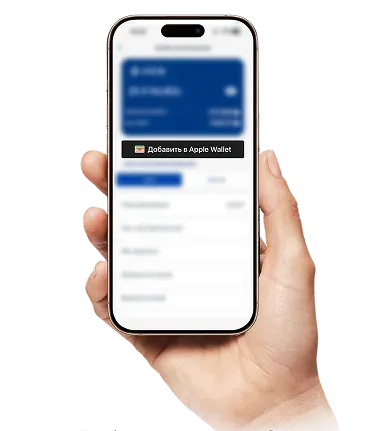
Добавление карты в приложении KICB

In the KICB App

  1. Open the KICB mobile app on your iPhone.
  2. Go to the Cards and Accounts section.
  3. Select your Visa or Mastercard card.
  4. Tap the “Add to Apple Wallet” button.
  5. Follow the simple on-screen instructions and accept the terms and conditions.
  6. Your card is ready to use.
  7. Open the Apple Wallet app, press and hold your KICB card, then drag it to the front. It will now become your default card.
Добавление карты в Apple Wallet

In Apple Wallet

  1. Open the Wallet app on your iPhone.
  2. Tap the “+” icon in the top-right corner.
  3. Tap “Debit or Credit Card”.
  4. Hold your iPhone near the back of the card or enter the card details manually.
  5. Enter your card details and tap “Continue”.
  6. Confirm the card linking by entering the one-time code sent by the bank via SMS.
  7. Your card is ready to use!
  8. Open the Apple Wallet app, press and hold your KICB card, then drag it to the front. It will now become your default card.

IMPORTANT: The bank sends a verification SMS code solely for entry on your device. Never share this code with anyone. Bank employees will never ask you for a verification code received via SMS.
How to Pay for Purchases?

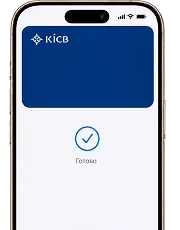
Payment with iPhone

Payment with iPhone

  • With Face ID: Double-click the side button on your iPhone, authenticate with Face ID, and hold the top of your phone near the POS terminal.
  • With Touch ID: Place your finger on the Touch ID sensor and hold your iPhone near the payment terminal.
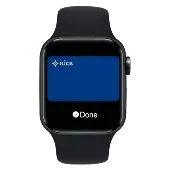
Payment with Apple Watch

Payment with Apple Watch

  1. Double-click the side button on your Apple Watch.
  2. Hold the Apple Watch display a few centimeters away from the contactless reader.
  3. Wait for a gentle vibration confirming that the payment has been completed.

FAQ

  • Which KICB Cards Can Be Added to Apple Pay?

    You can add KICB-issued Visa and MasterCard cards to Apple Pay.

  • Can I Add One Card to Multiple Devices?

    Yes, you can add your KICB Visa card to your iPhone, Apple Watch, and iPad at the same time.

  • Which Apple Devices Support This Service?

    It works on all iPhone models with Face ID or Touch ID (starting from iPhone 6), on Apple Watch, and on iPad and Mac for purchases in apps and on websites.

  • Can I Use Apple Pay Abroad?

    Yes. You can make payments anywhere contactless Visa cards are accepted. Currency conversion will be processed according to your KICB card’s standard rates.

  • Can I Use Apple Pay in Apps and on Websites?

    Yes. When placing an order in online stores or apps (for example, Glovo or Yandex), choose the payment option with the black “Buy with Apple Pay” button.

  • Is an Internet Connection Required to Pay at a Checkout?

    No. An internet connection is only required when adding your card to Wallet. You do not need internet access to pay at a POS terminal.

  • What Should I Do If My Device Is Lost or Stolen?

    Immediately enable Lost Mode through Find My or remove your cards from Wallet via your Apple Account. Contact the KICB Contact Center (24/7) at 8787 to block your cards.

KICB Support

If you have any questions about adding your card, we are happy to help:

  • In the KICB mobile app via the “Messages” section in the top-right corner
  • 8787 (Free short number for calls from mobile operators in the Kyrgyz Republic)
  • +996 (312) 62 01 01 (For landline and international calls)
  • +996 (704) 62 01 01 (Official WhatsApp channel)